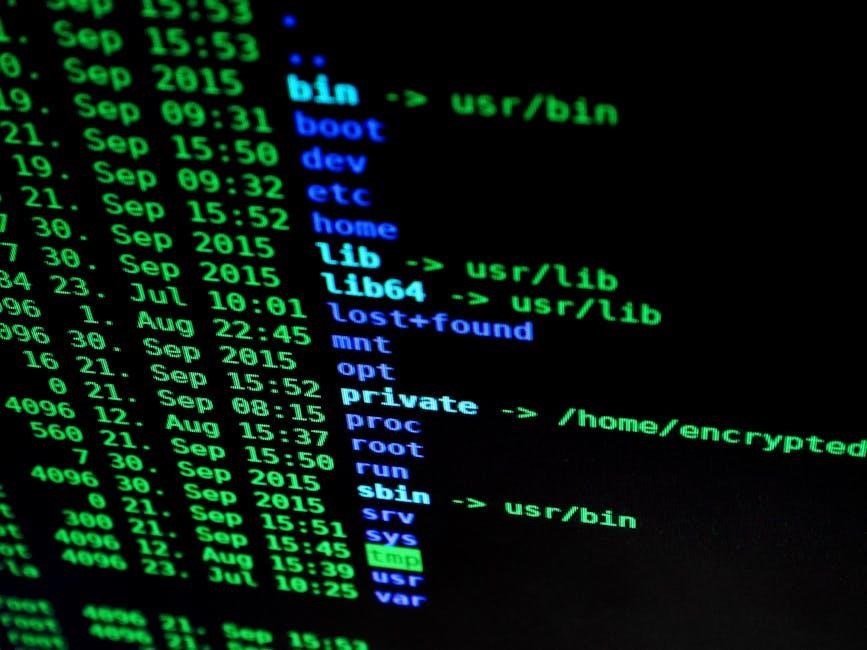
linux pocket guide
This handy guide, perfect for daily use, serves as an on-the-job reference for Linux users, featuring updated commands for diverse file types.
What is a Linux Pocket Guide?

A Linux Pocket Guide is a concise, portable reference designed to provide quick access to essential Linux commands and concepts. It’s not a comprehensive textbook, but rather a streamlined resource for users who need to perform common tasks efficiently. Think of it as a readily available cheat sheet for the command line.

These guides are particularly useful for system administrators, developers, and anyone who frequently interacts with a Linux environment. The third edition, as noted, expands its utility by including commands for handling image and audio files – a significant addition for multimedia workflows. It’s a practical tool for both beginners seeking to solidify their understanding and experienced users needing a quick refresher.
Why Use a Pocket Guide?
Utilizing a Linux Pocket Guide offers several advantages, primarily convenience and efficiency. Instead of constantly searching online for command syntax or options, a pocket guide provides immediate access to crucial information. This is especially valuable when working remotely or in environments with limited internet connectivity.
Furthermore, these guides accelerate problem-solving and task completion. The quick reference format minimizes downtime and boosts productivity. For those new to Linux, it’s a fantastic learning aid, reinforcing command usage through practical application. Experienced users benefit from having a readily available resource to confirm details and explore less frequently used commands, ensuring a smoother workflow.

Essential Linux Commands
Mastering core commands is vital for Linux proficiency. This section details fundamental tools for navigating, manipulating files, and managing the system effectively.

Navigating the File System
Efficiently moving around the Linux file system is a foundational skill. Understanding how to traverse directories and locate files is crucial for any user, from beginners to experienced administrators. The hierarchical structure of Linux organizes files in a tree-like manner, starting from the root directory, denoted by ‘/’.
Two primary commands facilitate this navigation: ls and cd. ls, short for “list,” displays the contents of a directory, showing files and subdirectories. It offers various options to customize the output, such as displaying hidden files or sorting by modification date.
The cd command, meaning “change directory,” allows you to move between directories. Simply type cd followed by the path to the desired directory. Using relative paths (e.g., cd Documents) or absolute paths (e.g., cd /home/user/Documents) provides flexibility in navigation.
`ls` — Listing Files and Directories
The ls command is your primary tool for viewing the contents of directories in Linux. By default, it lists files and subdirectories in the current working directory alphabetically. However, ls offers a wealth of options to tailor the output to your needs.
For example, ls -l provides a long listing format, displaying detailed information about each file, including permissions, owner, group, size, and modification date. ls -a reveals hidden files, those starting with a dot (‘.’).
Combining options, like ls -la, gives you a comprehensive view of all files, including hidden ones, with detailed information. Understanding these flags unlocks the full potential of ls for efficient file system exploration.
`cd` ─ Changing Directories
The cd command, short for “change directory,” is fundamental for navigating the Linux file system. It allows you to move between directories, effectively changing your current working location. Simply type cd followed by the path to the desired directory.
To move up one level, use cd ... Returning to your home directory is easily achieved with cd (without any arguments) or cd ~. Absolute paths, starting with a forward slash (/), specify the complete path from the root directory.
Relative paths, on the other hand, are defined relative to your current location. Mastering cd is crucial for efficient file management and command execution within the Linux environment.
File Manipulation
Essential file management in Linux revolves around a few core commands. These tools empower you to organize, duplicate, and remove files with precision. Understanding these commands is vital for any Linux user, streamlining workflows and maintaining a tidy file system.
The ability to copy, move, and delete files efficiently is paramount. These operations form the backbone of daily tasks, from software development to simple document organization. Proficiency in these commands translates directly into increased productivity and control over your digital environment.

Mastering these tools unlocks a powerful level of file system management, allowing for quick and effective handling of data.
`cp` ─ Copying Files
The cp command is fundamental for duplicating files in Linux. Its basic syntax is cp [options] source destination. This command creates a new file with the same content as the source, leaving the original untouched. You can copy multiple files simultaneously by listing them before the destination directory.
Important options include -r or -R for recursive copying of directories and their contents, and -i to prompt before overwriting existing files. Understanding these options prevents accidental data loss and ensures controlled duplication.
Effective use of cp streamlines workflows, enabling backups and efficient file organization.
`mv` ─ Moving/Renaming Files
The mv command serves a dual purpose: moving files to different directories and renaming them within the same directory. Its syntax is mv [options] source destination. When the destination is a directory, the source file is moved into it. If the destination is a new filename, the file is renamed.
Crucially, mv can overwrite existing files without prompting, so caution is advised. The -i option provides an interactive mode, prompting for confirmation before overwriting. Using absolute or relative paths ensures accurate file manipulation.
Mastering mv is essential for efficient file management and organization within the Linux environment.
`rm` ─ Removing Files
The rm command is used to delete files. Its basic syntax is rm [options] file(s). Be extremely careful when using rm, as deleted files are generally not recoverable without specific tools or backups. Always double-check the filename before execution!
Important options include -i for interactive mode, prompting for confirmation before each deletion, and -r or -R for recursive deletion, allowing you to remove directories and their contents. Using rm -rf is powerful but dangerous; misuse can lead to significant data loss.
Properly utilizing rm, with awareness of its options, is vital for maintaining a clean and organized Linux system.

Working with Text
Linux provides powerful tools for text manipulation, including editors like nano and vim, alongside utilities for viewing file contents efficiently.
Text Editors: `nano` and `vim`
For creating and modifying text files directly within the Linux terminal, two prominent editors stand out: nano and vim. nano is renowned for its simplicity and ease of use, making it an excellent choice for beginners. Its intuitive interface displays common commands at the bottom of the screen, guiding users through basic editing tasks. Conversely, vim is a highly configurable text editor favored by experienced users for its efficiency and extensive features.
While possessing a steeper learning curve, vim offers powerful capabilities like modal editing, allowing users to quickly navigate and manipulate text. Both editors are readily available on most Linux distributions and are invaluable tools for system administration, scripting, and general text-based work. Mastering either editor significantly enhances a Linux user’s productivity.
Viewing File Contents: `cat`, `less`, and `head/tail`
Linux provides several commands for inspecting the contents of files without opening them in a text editor. cat is the simplest, displaying the entire file content to the terminal. However, for larger files, less is preferred as it allows for scrolling and searching, preventing the entire file from overwhelming the screen. less is a pager, displaying content one page at a time.
For quick previews, head displays the first few lines of a file (defaulting to 10), while tail shows the last few lines. These are particularly useful for monitoring log files in real-time using the `-f` option with tail, displaying new lines as they are added to the file. These commands are essential for quickly understanding file content.

System Information and Management
Essential tools like top, free, ps, and kill empower users to monitor system resources and effectively manage running processes.
Checking System Resources: `top` and `free`
Monitoring system health is crucial for optimal performance. The top command provides a dynamic, real-time view of running processes, displaying CPU usage, memory consumption, and other vital statistics. It’s invaluable for identifying resource-intensive applications.
Alternatively, the free command offers a quick snapshot of memory usage, including total, used, and available RAM and swap space. This is particularly useful for determining if your system is running low on memory. Understanding these tools allows for proactive resource management, preventing slowdowns and ensuring system stability. Regularly checking these metrics helps maintain a responsive and efficient Linux environment.
Managing Processes: `ps` and `kill`
Effectively managing processes is a core Linux skill. The ps command (process status) displays a list of currently running processes, allowing you to view their process IDs (PIDs), CPU and memory usage, and associated commands. Different options with ps offer varying levels of detail, from a simple listing to a comprehensive overview.
When a process becomes unresponsive or consumes excessive resources, the kill command comes into play. By specifying the PID, you can send signals to terminate the process. A standard signal is SIGTERM (15), requesting graceful termination, while SIGKILL (9) forces immediate termination. Use kill cautiously, as forceful termination can lead to data loss.

Networking Basics
Essential networking tools like ping and ifconfig/ip help verify connectivity and configure network interfaces within the Linux environment.
Checking Network Connectivity: `ping` and `ifconfig/ip`
Verifying network connectivity is crucial for troubleshooting and ensuring proper communication. The ping command sends ICMP echo requests to a specified host, measuring round-trip time and packet loss – a quick way to check if a host is reachable. For example, ping google.com tests connectivity to Google’s servers.
To view and configure network interfaces, use ifconfig (older systems) or ip (modern distributions). These commands display IP addresses, subnet masks, and other network parameters. ip addr show lists all network interfaces and their configurations. Understanding these tools allows you to diagnose network issues and configure your system’s network settings effectively.
Secure Shell (SSH) Basics
Secure Shell (SSH) provides a secure encrypted connection for remote access and command execution. It’s essential for managing servers and transferring files securely. To connect to a remote server, use the ssh command followed by the username and server address: ssh user@example.com.
SSH utilizes key-based authentication for enhanced security, eliminating the need for passwords. Generating an SSH key pair (public and private) allows passwordless login. The public key is placed on the remote server, while the private key remains secure on your local machine. Remember to protect your private key diligently, as it grants access to your servers.
Advanced Topics (Brief Overview)
Dive deeper into package management systems like apt, yum, and dnf, alongside mastering user and permissions control for robust system administration.
Package Management (apt, yum, dnf)
Linux distributions utilize package managers to streamline software installation, updates, and removal. Apt is commonly found on Debian and Ubuntu-based systems, offering commands like apt update to refresh package lists and apt install [package_name] for installation. Yum, prevalent in older Red Hat-based distributions, employs commands such as yum update and yum install [package_name].
Dnf, the successor to yum, is now standard on Fedora and newer Red Hat systems, providing enhanced performance and dependency resolution. Key dnf commands include dnf update and dnf install [package_name]. Understanding these tools is crucial for maintaining a secure and up-to-date Linux environment, allowing users to efficiently manage software dependencies and system configurations.
User and Permissions Management
Linux security relies heavily on user accounts and file permissions. The useradd command creates new user accounts, while passwd sets or changes passwords. Understanding file permissions – read (r), write (w), and execute (x) – is vital. Chmod modifies these permissions (e.g., chmod 755 filename).
Chown alters file ownership (e.g., chown user:group filename). The sudo command allows authorized users to execute commands with root privileges, essential for system administration. Proper management of users and permissions prevents unauthorized access and maintains system integrity. Mastering these concepts is fundamental for secure Linux operation and data protection.
Leave a Reply
You must be logged in to post a comment.